---
title: ShopSecurity - Unprotected macOS desktop files
description: ShopSecurity - Unprotected macOS desktop files. There are security risks due to unprotected .DS_Store files. How can I protect my .DS_Store files?
---
[Skip to content](https://knowledge.maxcluster.de/en/shopsecurity-unprotected-macos-desktop-files#main-content)
- [English](https://knowledge.maxcluster.de/en/shopsecurity-unprotected-macos-desktop-files)
- [Deutsch](https://knowledge.maxcluster.de/ungeschuetzte-macos-desktop-dateien)
English
Show submenu for translations
[](https://knowledge.maxcluster.de/en)
Open main navigation
Close main navigation
- - [English](https://knowledge.maxcluster.de/en/shopsecurity-unprotected-macos-desktop-files)
- [Deutsch](https://knowledge.maxcluster.de/ungeschuetzte-macos-desktop-dateien)
English
Show submenu for translations
- [maxcluster.de/en](https://maxcluster.de/en)
[maxcluster.de/en](https://maxcluster.de/en)
How can we help you?
- There are no suggestions because the search field is empty.
1. [Knowledge Base (en)](https://knowledge.maxcluster.de/en)
2. [Managed Center](https://knowledge.maxcluster.de/en/managed-center)
3. [ShopSecurity](https://knowledge.maxcluster.de/en/managed-center#shopsecurity)
January 9, 2026
# ShopSecurity - Unprotected macOS desktop files
## There are security risks due to unprotected .DS\_Store files. How can I protect my .DS\_Store files?
**Please note:** The information in this article refers exclusively to our [ShopSecurity](https://knowledge.maxcluster.de/en/what-is-shopsecurity) tool, which you can use to check your shop installations for known and potential security vulnerabilities.
The MacOS operating system automatically creates index files - `.DS_Store` - on local storage media, which store display options for all files as well as subdirectories of a folder. Due to different working methods, when files are synchronized between the installation directory of the production store and the working device of the web developer, often all files are copied as well. The actually local `.DS_Store` files can thus be copied to the web server when uploading changes later or during a resynchronization. Since the files contain information such as configuration files, backup copies or database exports, their accessibility via the web server poses the risk of a store being taken over or manipulated, or of database contents being retrieved.
### **Solution: Delete .DS\_Store files**
Since the `.DS_Store` files contain only display information for Mac OS, these files should be deleted from the web server. You can use the following command to display these files on your cluster. Note that it may take some time to run if you store a lot of directories and files on your cluster.
`find /var/www/share -type f -name .DS_Store`
If this command produces no output, no .DS\_Store files were found. If you get output of files you want to delete, add the `-delete` parameter to the command:
`find /var/www/share -type f -name .DS_Store -delete`
#### **Cronjob to delete the .DS\_Store files**
To generally prevent `.DS_Store` files from being stored on the cluster, you can also automate the deletion of these files.
To do this, create a cronjob for removing these files via the Managed Center of your cluster.
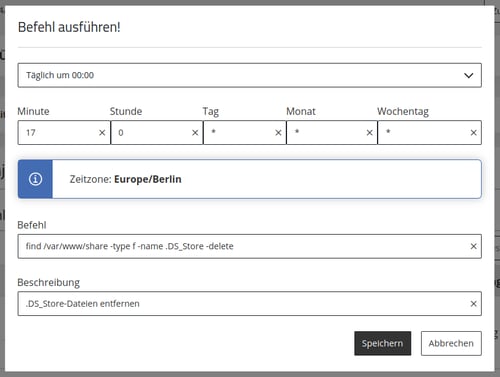
1. Navigate to the menu item "Cronjobs" in the Managed Center of the desired cluster.
2. Click the blue "Execute command" button. A window with input fields opens.
3. Select the default setting "Daily at 00:00".
4. Enter a random value between 0 and 59 in the Minute field. The value "17" is just an example, but a "crooked" number (not divisible by 5) is ideal.
5. In the Command field, type the command to execute:
`find /var/www/share -type f -name .DS_Store -delete`
6. Under Description, give the cron job a description, such as `.DS_Store Files delete`.
7. Click Save to apply the changes.
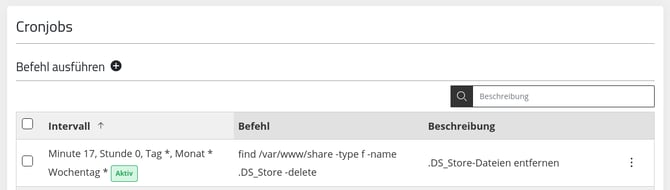
8. After saving, the new cronjob will be displayed as a tile under the heading "Execute command". Activate it by clicking the red button on the left side of the tile. This will delete any uploaded .DS\_Store files from the server on a daily basis.
Please note that automatic deletion can be very resource intensive if you have a lot of directories and files on your cluster. Also, if you have a media directory distributed between multiple servers, this procedure is not ideal. In such a case, please contact us for a customized solution.
### **Further security measures**
In general, the directory from which the web server can deliver files should only contain files that should be delivered. With Magento 2, for example, you can easily achieve this by replacing the `htdocs` directory with a symbolic link to the Magento subdirectory `pub`. With Shopware 6, this setting (with the *`public`* subdirectory) is already mandatory. When creating database exports, backups and log files, you should also make sure that they are stored directly outside the `htdocs` directory.
If certain files need to be in the `htdocs`directory or a subfolder, but you do not want them to be accessible from the web server, we recommend locking access to these files and directories.
#### **Example Apache**
When using Apache, directories or files can be protected via the `.htaccess` configuration file. This protection applies to the directory in which the file is located as well as to all directories below it. Edit an existing `.htaccess` file in the `htdocs`directory or create the file if it does not exist. If you want to protect an entire directory with all subdirectories, add the following content to the `.htaccess` file:
*`Require all denied`*
This configuration is valid for Apache 2.4. Apache 2.2 requires a different configuration, but this version is no longer used in our clusters.
If you want to protect individual files in one or more directories, add the following content to the `.htaccess` file in the `htdocs` directory:
`# Block access to files with the extension "sql`
*``*
*`RewriteEngine On`*
*`RewriteRule \.sql$ - [NC,F,L]`*
``
##### **You can't find the `.htaccess` file?**
If you do not see a file named `.htaccess` anywhere in your store installation directory, this could be due to the settings of your FTP program. Because the filename `.htaccess` starts with a dot, this file will only be visible if you have activated the display of hidden files.
Also when accessing via SSH you have to enable the display of hidden files, for example by adding the parameter `-a` to the command `ls`.
#### **Example NGINX**
When using NGINX, the protection must be built into the configuration of the affected domain. You can add the following line to `userdefined.conf` via the rule editor of the affected domain. In doing so, customize the rule according to the files or directories you want to protect.
*`# block access to files with extension "sql`*
`location ~* "\.sql$" { return 403; }`
### **Further recommended actions**
- Also protect the directories of the version control systems Git and Subversion from unauthorized access.
- When using Apache, check in an existing *`.htaccess`* file whether access to corresponding directories or files is blocked. Also in the directories to be protected themselves `.htaccess` files can be contained.
- When using NGINX, use our application templates, which already protect many application-specific folders and files.
If you require any further assistance, please contact our support team by phone at +49 5251/414130 or by email at [support@maxcluster.de](mailto:support@maxcluster.de)
- [Managed Center](https://knowledge.maxcluster.de/en/managed-center#main-content)
- [ShopPerformance](https://knowledge.maxcluster.de/en/managed-center#shopperformance)
- [ShopSecurity](https://knowledge.maxcluster.de/en/managed-center#shopsecurity)
- [General information](https://knowledge.maxcluster.de/en/general-information)
- [Magento](https://knowledge.maxcluster.de/en/magento#main-content)
- [Information](https://knowledge.maxcluster.de/en/magento#information)
- [Shopware](https://knowledge.maxcluster.de/en/shopware#main-content)
- [Instructions](https://knowledge.maxcluster.de/en/shopware#instructions)
[](https://maxcluster.de/)
Copyright © 2025, maxcluster GmbH